
To improve gaming performance, update the graphics driver, turn on Game Mode, set Windows to Best performance, set the monitor to its highest refresh rate, lower shadows and ray tracing, and use DLSS, FSR, or XeSS when the game supports it. Test average FPS and 1% lows in the same scene before and after each change.
Gaming performance is the mix of frame rate, frame time, input lag, and load time that decides how a game feels in play. A higher frame rate makes motion smooth, a steady frame time stops stutter, low input lag makes controls feel quick, and short load times get you into the game fast. The sections below cover settings, drivers, upscaling, lag, heat, RAM, storage, and upgrades, in that order.
Key Takeaways
- Test FPS and 1% lows before changing settings.
- Update the driver and Windows first, then test Game Mode.
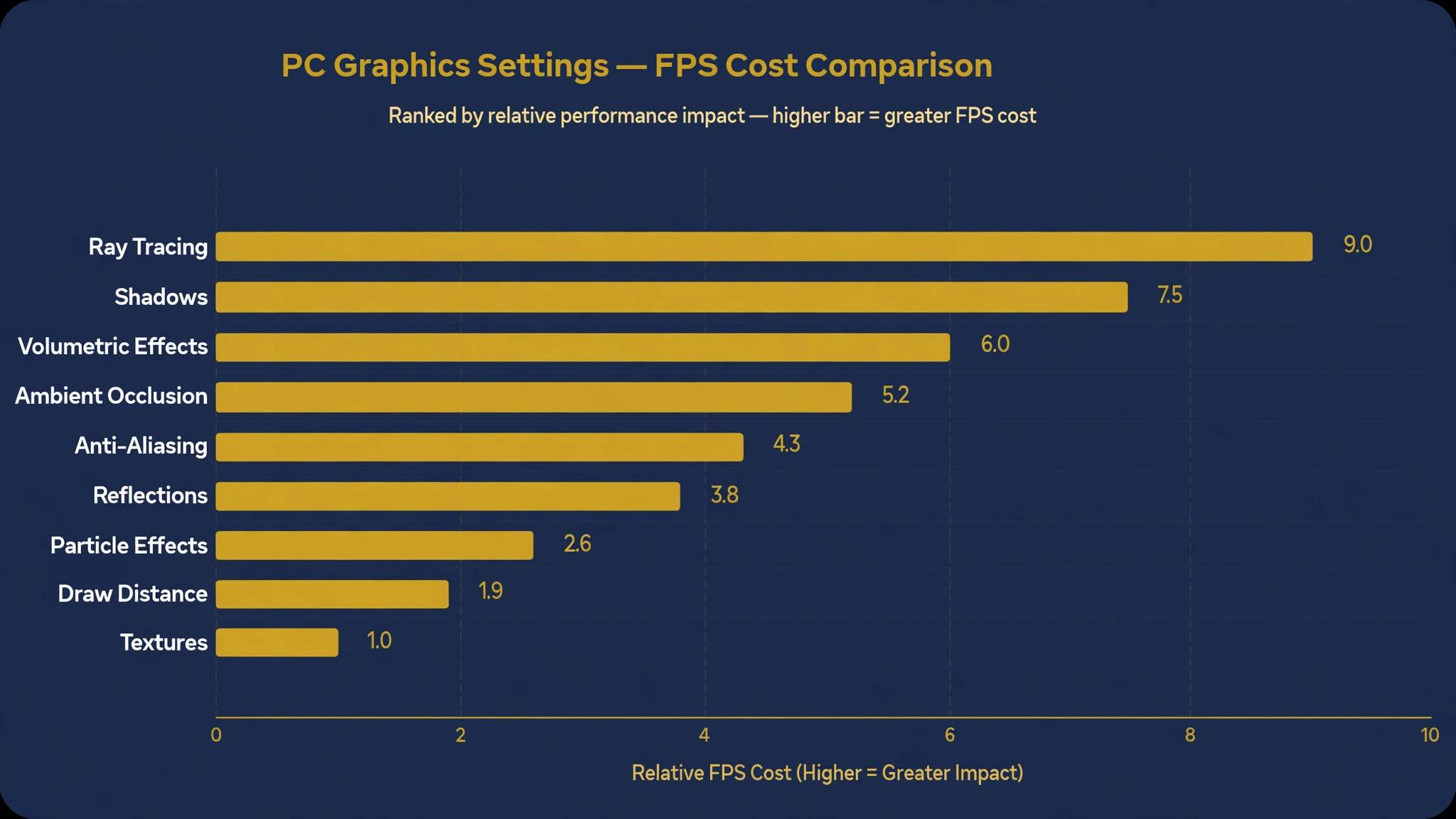
- Lower shadows, ray tracing, and reflections first, because they cost most FPS.
- Use DLSS, FSR, or XeSS on Quality or Balanced mode.
- Cap FPS 3 to 4 below the refresh rate with G-Sync or FreeSync.
- Fix heat, RAM, and storage first, and buy a GPU only if the GPU limits play.
Table of Contents
- What Does It Mean to Improve Gaming Performance?
- How Do You Find What Slows Your Game Down?
- What Are the Fastest Free Fixes for Higher FPS?
- How Do You Improve Gaming Performance in Windows 11?
- Which In-Game Settings Raise FPS the Most?
- Should You Use DLSS, FSR, or XeSS?
- How Do You Reduce Input Lag and Online Lag?
- How Do You Stop Stutter From Heat, RAM, and Storage?
- What Should You Upgrade First, and When?
- How Do You Test Each Change So You Keep Only What Works?
- Frequently Asked Questions
What Does It Mean to Improve Gaming Performance?
To improve gaming performance means to raise the frame rate, steady the frame time, lower input lag, and shorten load times on the same PC. A game runs well when frames arrive on time, controls reach the screen fast, and new areas load without a long pause.
Frame rate is the count of frames a PC shows each second, written as FPS. A frame rate of 60 FPS has long been treated as the minimum for smooth play in computer games. Average FPS can hide stutter, so the 1% low matters more for feel.
How Do You Find What Slows Your Game Down?
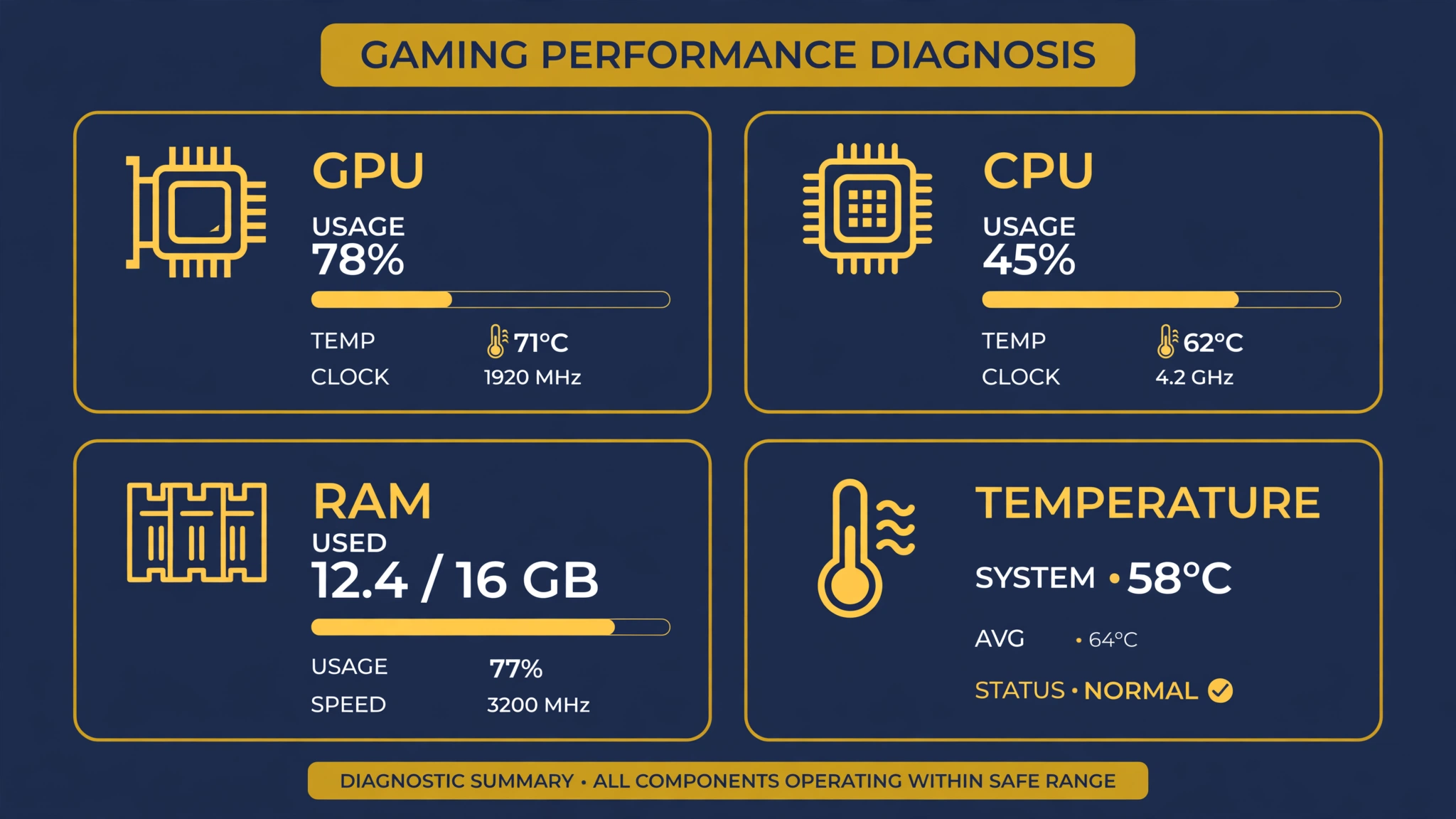
To find what slows your game down, open Task Manager, play the same game scene for 2 minutes, and read GPU, CPU, RAM, and temperature. The part near 100% is the limit. Fix that part first.
Open Task Manager with Ctrl+Shift+Esc, open the Performance tab, and play one repeatable scene for 2 minutes. Note GPU, CPU, memory, disk use, and temperature.
| What you see | What it means | Fix first |
|---|---|---|
| GPU near 99%, CPU 40-50% | GPU-bound | Lower settings, use upscaling |
| CPU above 90%, GPU below 70% | CPU-bound | Close apps, lower crowd distance |
| GPU and CPU both low, FPS still low | Frame cap, V-Sync, or power limit | Check cap, V-Sync, power, charger |
| Temperature above 90°C (194°F) | Thermal throttling | Clean fans and vents |
| Disk at 100% during loads | Storage-bound | Move game to an SSD |
| High ping, smooth FPS | Network lag | Use Ethernet, close downloads |
Many laptops cut CPU and GPU speed on battery power. Play while plugged in with the original charger. For more Tech guides, browse the Tech category on this site.
What Are the Fastest Free Fixes for Higher FPS?
The fastest free fixes for higher FPS are to update the graphics driver, set the monitor to its highest refresh rate, turn on Game Mode, set the power mode to Best performance, and close heavy background apps. These 5 changes take about 10 minutes, cost nothing, and help most PCs.
Start with the driver. Open the NVIDIA App, AMD Software, or Intel Driver and Support Assistant, install the latest stable driver, then restart the PC.
Next, set the monitor refresh rate. A 144 Hz or 165 Hz monitor often ships running at 60 Hz. Open Settings, go to System, Display, Advanced display, then pick the highest rate. Then close background apps.
How Do You Improve Gaming Performance in Windows 11?
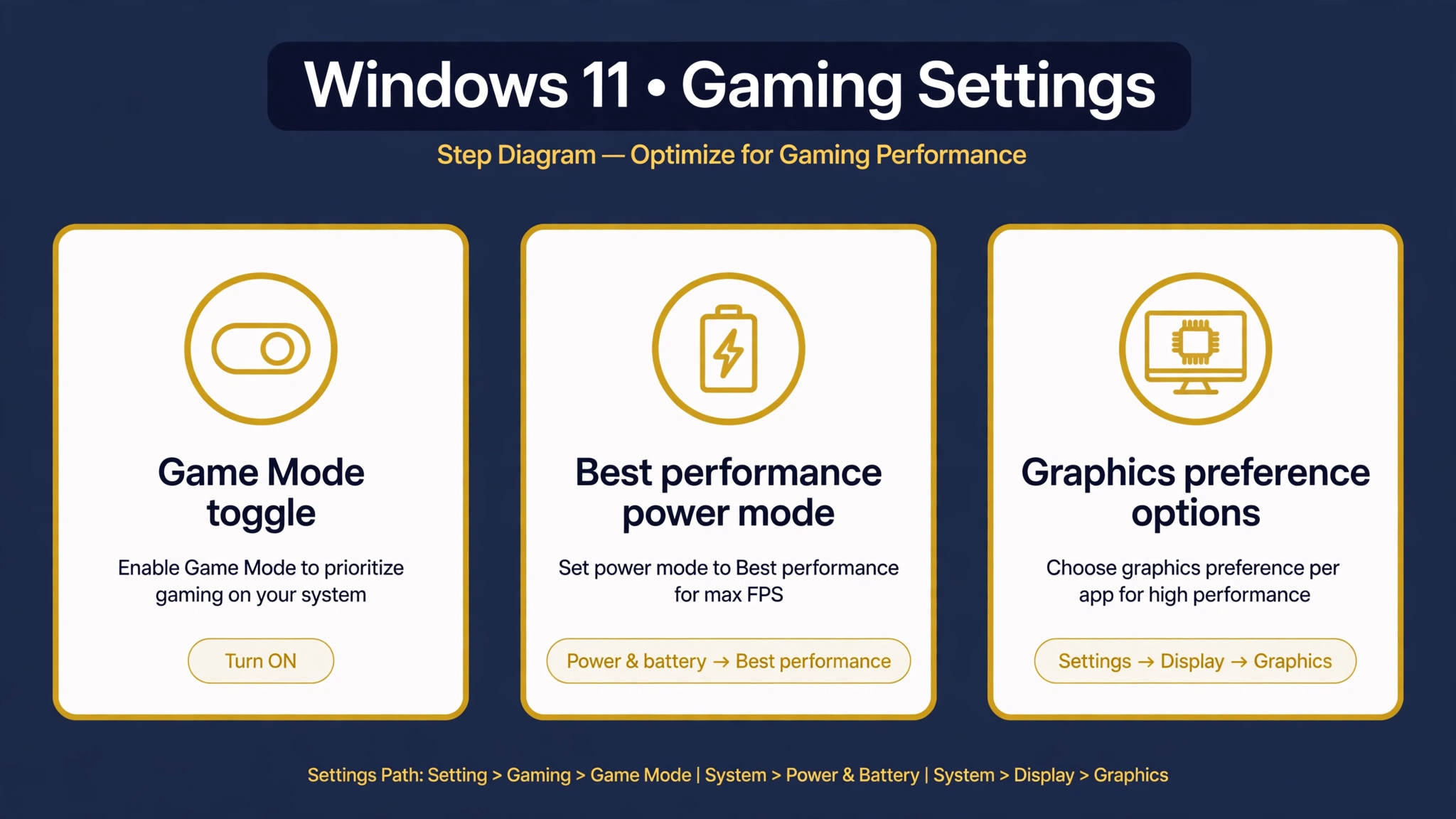
To improve gaming performance in Windows 11, turn on Game Mode, set the power mode to Best performance, set the game to the High performance GPU on laptops, and test Hardware-Accelerated GPU Scheduling (HAGS). These 4 Windows settings help most PCs, and each one is easy to undo.
Turn on Game Mode first. Open Settings, go to Gaming, then Game Mode, and turn it on.
Set the power mode next. Open Settings, go to System, Power and battery, then set Power mode to Best performance. On laptops, open Settings, go to System, Display, Graphics, find the game, choose Options, pick High performance, then click Save.
Test HAGS last, because its effect varies by GPU age. Open Settings, go to System, Display, Graphics, Default graphics settings, then turn on Hardware-Accelerated GPU Scheduling.
Which In-Game Settings Raise FPS the Most?
The in-game settings that raise FPS the most are resolution, ray tracing, shadows, reflections, volumetric lighting, and ambient occlusion. Lower those 6 settings first, keep texture quality high when VRAM allows it, and lower the preset from Ultra to High or Medium before you touch anything else.
Resolution decides how many pixels the GPU renders for each frame. If the GPU is the limit, lower the render resolution or set render scale to 80% or 70%.
| Setting | Shooter | Open-world | Racing | Strategy |
|---|---|---|---|---|
| Preset | Medium | High | High | Medium |
| Shadows | Low | Medium | Medium | Medium |
| Ray tracing | Off | Off | Off | Off |
| Reflections | Low | Medium | High | Low |
| Texture quality | High | High | High | High |
Turn off motion blur in competitive games.
Record your tests before and after each change with our guide to screen recording so you can compare the same scene frame by frame.
Should You Use DLSS, FSR, or XeSS?
Yes, use DLSS, FSR, or XeSS when the game supports upscaling and your GPU is the limit. Upscaling renders the game at a lower internal resolution and rebuilds the image toward the target output resolution, which raises FPS with a small loss in image clarity.
NVIDIA DLSS (Deep Learning Super Sampling) runs on NVIDIA RTX cards, AMD FSR (FidelityFX Super Resolution) runs on a wide range of AMD, NVIDIA, and Intel cards, and Intel XeSS runs on Intel Arc cards. DLSS Quality mode renders about 66.7% of the pixels of the target resolution, per Engadget (2026). Use Quality mode first.
Frame generation is separate from upscaling. It can raise the shown frame rate, but it adds input lag. Use it for slow story games, not competitive shooters.
| Upscaler | Best GPU match | When to use it | When to skip it |
|---|---|---|---|
| DLSS | NVIDIA RTX cards | GPU-bound games at 1440p or 4K | CPU-bound games |
| FSR | AMD, NVIDIA, Intel cards | Games without DLSS, older GPUs | Games already at high FPS |
| XeSS | Intel Arc cards | Intel Arc systems | Games with DLSS or FSR |
How Do You Reduce Input Lag and Online Lag?
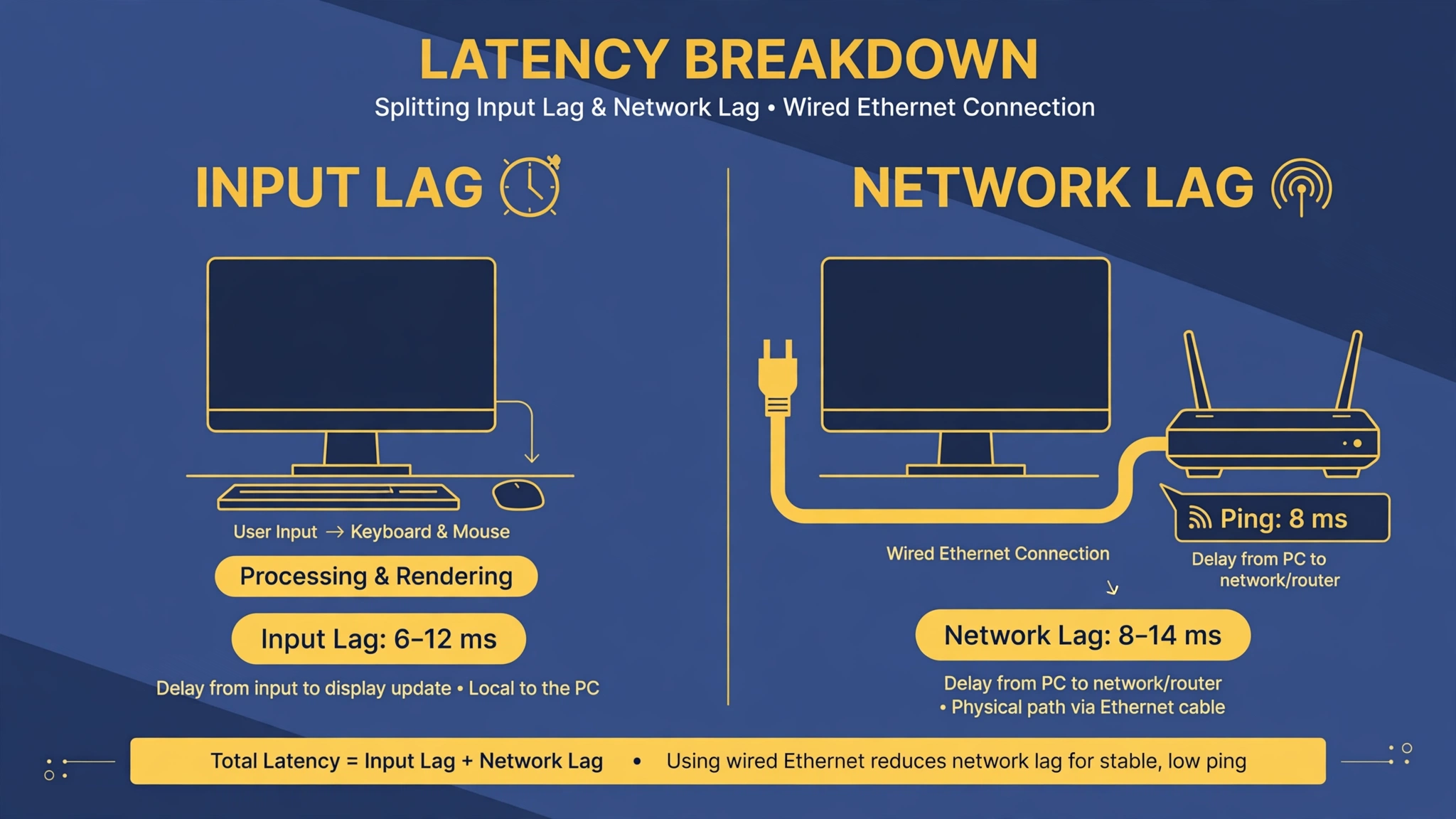
To reduce input lag and online lag, cap the frame rate below the refresh rate, turn on Reflex or Anti-Lag, use a wired Ethernet cable, and close downloads and streams during play. Input lag and network lag have different causes, so test them apart.
Input lag comes from frames that wait in a queue before they reach the screen. Cap the frame rate 3 to 4 FPS below the monitor refresh rate to shorten that queue. Use the in-game frame limiter first, because it adds the least delay.
Online lag is different. Ping is the round-trip time to the game server in ms. A ping under 50 ms feels quick, and a ping above 100 ms feels slow. Use an Ethernet cable instead of Wi-Fi when you can. Close downloads and streams during a match.
How Do You Stop Stutter From Heat, RAM, and Storage?
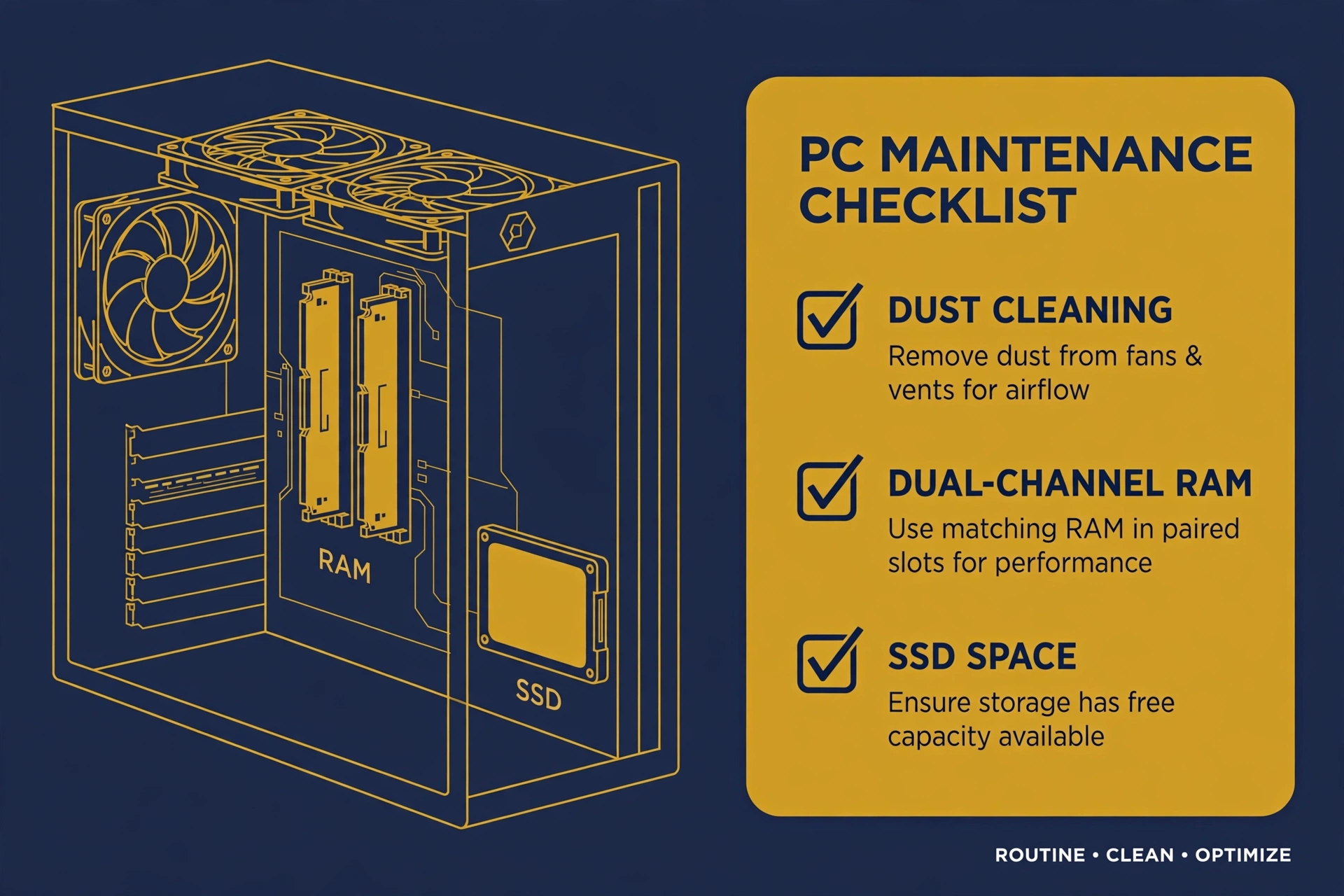
To stop stutter from heat, RAM, and storage, clean dust from fans and vents, keep 16 GB of RAM in dual-channel mode, and move active games to an SSD with free space. Heat, RAM, and storage cause stutter that no graphics setting can fix.
Heat cuts speed to protect the chip. When a CPU or GPU passes about 90°C (194°F), it lowers its clock speed, and FPS drops in waves. Clean dust from intake filters, fans, and vents every 3 to 6 months
16 GB is the minimum for gaming in 2026, and 32 GB helps when you stream or run Discord beside the game. Use two matched RAM sticks in dual-channel mode, and turn on XMP (Extreme Memory Profile) on Intel boards or EXPO (Extended Profiles for Overclocking) on AMD boards. Move active games to an SSD, and keep at least 10% free space on the game drive.
What Should You Upgrade First, and When?
Buy the GPU first only when the GPU is the limit at your target resolution, buy RAM first when memory use passes 90%, and buy an SSD first when load times and area stutter are the fault. Spend in the order that fixes the measured limit, not in the order that looks best in a shop list.
| Target | First upgrade | Second upgrade | Third upgrade |
|---|---|---|---|
| 1080p, 60 FPS | 16 GB RAM, SSD | Mid-range GPU | CPU |
| 1080p, 144 FPS | GPU, then CPU | 32 GB RAM | NVMe SSD |
| 1440p, 60-144 FPS | GPU | 32 GB RAM | CPU |
| 4K, 60 FPS | High-end GPU | 32 GB RAM | CPU, NVMe SSD |
A graphics processing unit (GPU) renders each frame, so it decides resolution, detail, and frame rate in most games. Match the upgrade to the bottleneck table. Voice of Wave is the home of this guide.
How Do You Test Each Change So You Keep Only What Works?
To test each change, record a baseline in one repeatable scene, change one setting, replay the same scene, and keep the change only when average FPS and 1% lows rise. One change at a time is the only way to link a result to the setting that caused it.
Pick a repeatable game scene that matches your normal play. Record average FPS, 1% lows, frame time, and ping in that scene. Change one setting, then leave all other options alone. Then replay the same scene. Keep the change when the numbers rise, and undo it when the numbers fall or stay flat.
Conclusion
To improve gaming performance, start with free settings, test each change in one repeatable scene, and spend money only on the part the test names as the limit. Update the driver, set the monitor to its highest refresh rate, turn on Game Mode, set Best performance, and close heavy background apps. Lower shadows, ray tracing, and reflections first, keep textures high when VRAM allows it, and use DLSS, FSR, or XeSS on Quality mode when the GPU is the limit. Cap FPS 3 to 4 below the refresh rate, and use Ethernet for online play. Clean dust, keep 16 GB of RAM in dual-channel mode, and move games to an SSD. Keep only the gains you can measure.
Keep your PC fast: Browse the latest articles for more plain Tech guides you can use today.
Frequently Asked Questions
Can I improve gaming performance without buying new hardware?
Yes, you can improve gaming performance without buying new hardware in most cases. Update the graphics driver, turn on Game Mode, set the power mode to Best performance, set the monitor to its highest refresh rate, close heavy background apps, and lower shadows and ray tracing first.
How much RAM do I need for gaming in 2026?
You need 16 GB of RAM for gaming in 2026 as a minimum, and 32 GB helps when you stream or run Discord plus a browser beside the game. Use two matched RAM sticks in dual-channel mode, and turn on XMP on Intel boards or EXPO on AMD boards in the BIOS.
Should I turn on Game Mode in Windows 11?
Yes, turn on Game Mode in Windows 11 and test it in your own game. Open Settings, go to Gaming, then Game Mode, and turn it on. Game Mode lowers the priority of background tasks while you play and can cut small stutters on PCs with limited CPU resources or 16 GB of RAM or less.
Does DLSS or FSR lower image quality?
DLSS and FSR can lower image quality a little, but Quality mode keeps the loss small in most games. Both render the game at a lower internal resolution and rebuild the image toward the target output resolution. DLSS Quality mode renders about 66.7% of the pixels of the target resolution, per Engadget (2026).
Why does my game stutter when FPS looks high?
Your game stutters when FPS looks high because average FPS hides bad frame times. The 1% low shows the frame rate in the worst 1% of frames, and a low 1% low means regular drops. A PC that averages 120 FPS with a 45 FPS 1% low feels worse than one holding 90 FPS with an 80 FPS 1% low.
Is Ethernet better than Wi-Fi for gaming?
Yes, Ethernet is better than Wi-Fi for gaming in most homes. A wired cable gives lower ping and fewer dropped packets than Wi-Fi, which can lose packets when other devices use the same network. Sit closer to the router and use the 5 GHz band when a cable is not possible. Close downloads and streams during a match.
How do I know if my GPU or CPU is the bottleneck?
You can tell the bottleneck from Task Manager while you play the same game scene for 2 minutes. A GPU near 99% with a CPU near 40 to 50% means the graphics card is the limit. A CPU above 90% with a GPU below 70% means the processor is the limit. Heat above 90°C (194°F) means heat is cutting speed.